
How to Deposit on Involio (Invo App): Step-by-Step Guide

If you want to learn how to deposit on Involio, the first step is to open your account and check the funding methods available to you.
Involio, also known as the Invo App, supports three deposit options. Eligible users can fund their accounts with USDC using Bank, Google Pay, Apple Card, or Card payment methods, or cryptocurrency transfers using USDC on the Solana and Arbitrum blockchain networks.
But What Is an Involio Deposit?
An Involio deposit is the process of adding funds to your account so you can use the platform’s supported trading features to make money.
As discussed in our review, Involio combines social trading tools with access to cryptocurrency markets and offers different funding options.
Let’s now see how to fund your Involio account.
Steps to Funding Your Involio Trading App Account
First, make sure you’re using the official Involio website. Log in, go to Wallet, and select Deposit. You’ll see the available deposit options, such as crypto, card, bank transfer, Apple Pay, or Google Pay, depending on availability. Choose your preferred method.
If you’re depositing crypto:
Copy the deposit address provided by Involio and make sure the selected network matches the network you’re using to send the funds. Then, open your crypto wallet, paste the address, enter the amount you want to deposit, and confirm the transfer. Your funds may appear in your Involio account within five minutes, depending on network conditions.
If you’re using another payment method:
Choose your preferred option, such as a card, bank transfer, or supported payment service. Follow the on-screen prompts, enter the amount, and confirm the transaction from your device if required.
Let’s start with a crypto deposit.
How to Deposit USDC on Involio
Step 1. Sign In to Your Involio Account
Start by visiting the official Involio website: invoapp.com.
Sign in using the account you created during registration. If you’re new to the platform, read our Involio sign-up guide before proceeding.

Step 2. Go to the Wallet Section
Once you are signed in, locate the Wallet section in the platform’s interface.
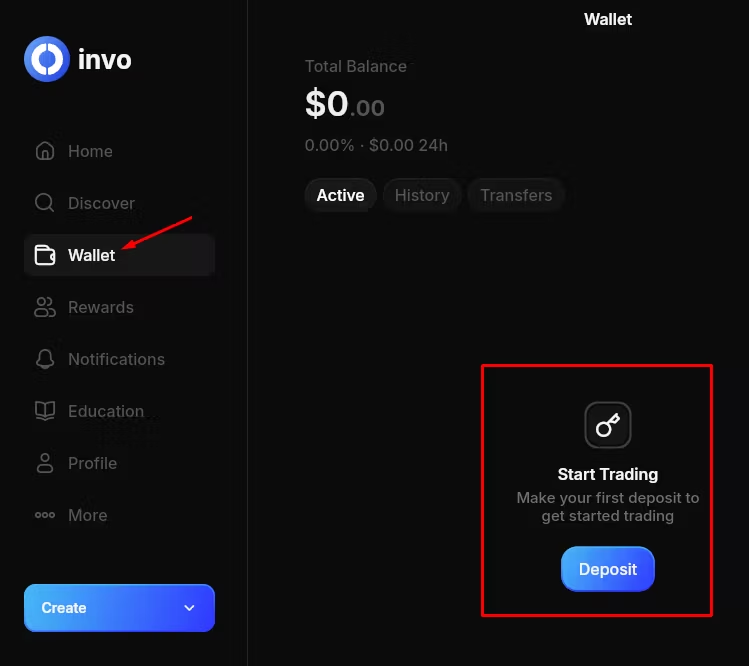
- Click on Deposit & select the deposit option: Apple, Google Pay, Bank, or Crypto.
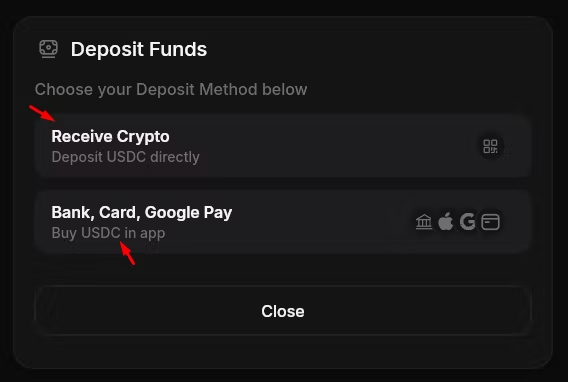
3. Choose USDC as Your Deposit Method
Since Involio accepts USDC, you’ll need to swap your cryptocurrency for USDC and then transfer it to the deposit address provided by Involio.
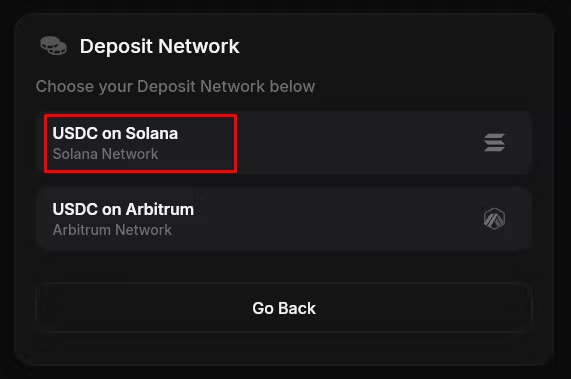
The available networks for USDC deposits are:
- Solana
- Arbitrum
- Choose USDC and a preferred blockchain network. I will work with Solana.
- Tick the boxes to confirm that you’re sending USDC and have selected the Solana network.
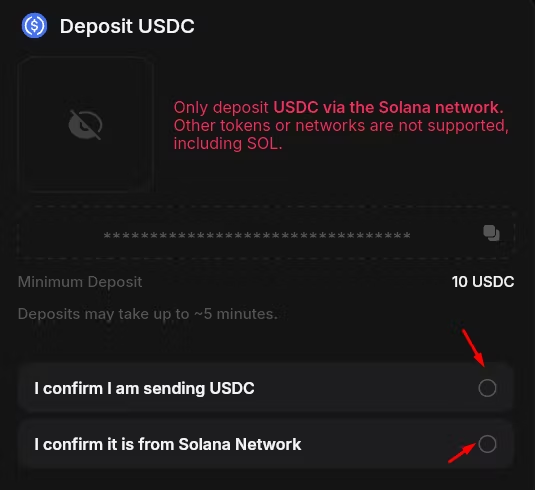
P.S.: The minimum deposit is $10.
Step 4. Copy your deposit address or use the displayed QR code
Look down and copy the wallet address, or just scan the QR code if you have USDC on another device.

Step 5. Open Your Sending Wallet or Exchange Wallet
You can use crypto exchanges such as Gate.io and MEXC, or a wallet like Phantom.
For this guide, I’ll use Phantom Wallet as the funding wallet source.
Click here to download Phantom for Android or iOS. Install the app, then deposit funds into your wallet using Apple Pay or a card, where supported.

If you’re using Gate.io or MEXC instead, follow the equivalent steps on your chosen exchange.
In your Phantom wallet, you’ll need to swap the funds you deposited for USDC. Click Swap and select the asset you deposited as the token to swap into USDC.
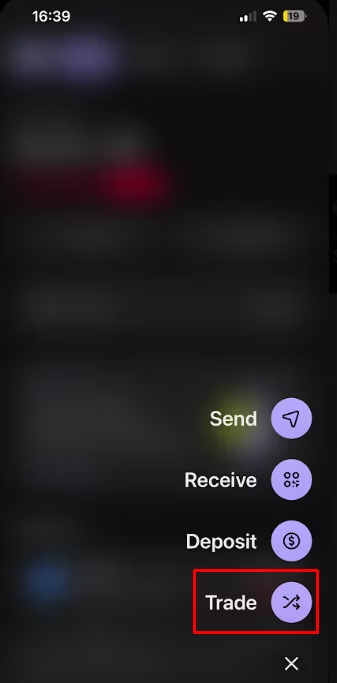
Enter the amount you want to swap for USDC, confirm the transaction, and your USDC will appear in your wallet.

With your USDC ready, let’s proceed.
Step 4: Enter the Amount to Fund
Look at the bottom-right corner and click the plus (+) icon, then select Send.
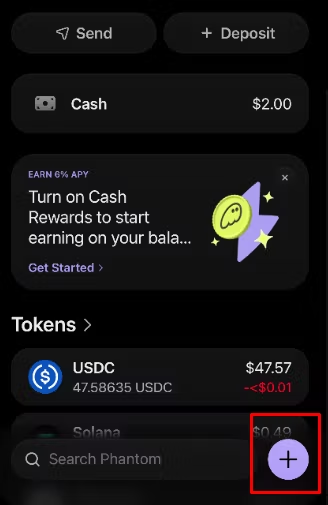
Select the cryptocurrency you want to send. In this case, I’ll select USDC. Confirm that you’re using the Solana network.

Enter the amount you want to send.
Since this is my first time, I’ll fund the account with $25.
Double-check the network fee, recipient address, and amount. Once everything looks correct, click Send.
Step 5: Confirm the Transfer
Security alert: If this is your first time sending funds, Phantom may warn you that the recipient wallet has no balance or doesn’t appear in your recent transaction history. Make sure the recipient address is correct before proceeding.

- If you’ve verified the address and the details are correct, click Continue.

- Allow the transaction to process, and you’re done.

Step 6: Check Your Involio Balance
After sending the funds from my Phantom wallet, I logged in to my Involio app and checked the deposit. However, it prompted me to “Accept” the transfer. I’d never seen this feature before.

- Click “Accept” and wait for it to process the acceptance request.

- Confirm it in your balance

That is all.
The transferred funds will be added to your balance, as shown in mine.
Ready to deposit?
🎟️ Get started on Involio.com, download the Phantom Wallet app, and repeat the process.
Before we discuss how long the deposit took to reflect in my account, let’s look at how to do it using the second method.
Method 2: How to Deposit Using Apple Pay, Bank, or a Card on Involio
Step 1. Sign In to Your Involio Account
Start by visiting the official Involio website: invoapp.com.
Step 2. Go to the Wallet Section
Once you are signed in, locate the Wallet section in the platform’s interface.
- Click on Deposit & select the deposit option: Card, Google Pay, or Bank.

Step 3: Choose a Deposit Option
You can deposit USDC using Swapped, Google Pay, or a debit/credit card. Choose your preferred option.
I’ll use a card for this guide, so select “Card” and proceed.

Step 4: Enter the Amount and Choose a Payment Option
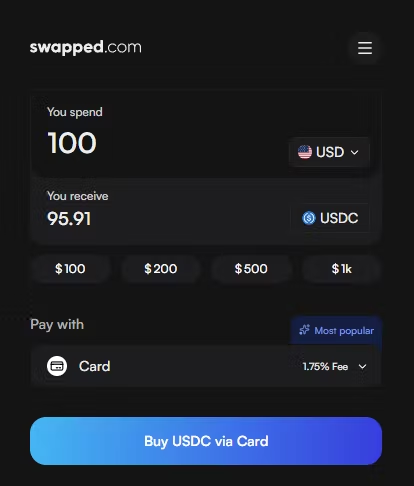
Enter the amount you want to deposit and select your preferred payment option.

Getting a cheaper option: I recommend clicking the “Pay with” menu and exploring other payment options to find a better deal, because Paysafecard is quite expensive.
When you click the menu, select your country again if it isn’t already selected, then choose a cheaper option.
Apple Pay, Google Pay, and card payments each have a 1.75% transaction fee, compared with 11% for Paysafecard.

Choose whichever option you prefer. I’ll use “Card” for this guide.
Step 5: Confirm the Transaction
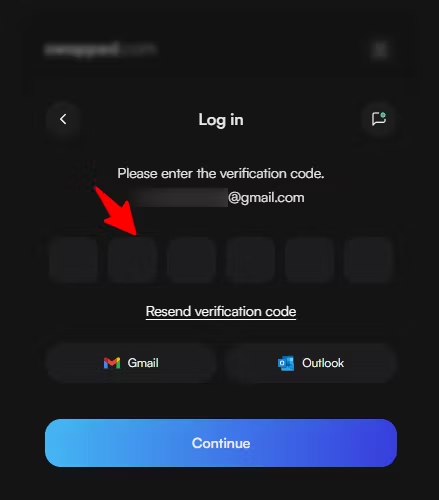
Enter your email address to receive the transaction verification code.

- Enter the verification code sent to your email.
- Next, enter your personal details and confirm the transaction.

- Finally, enter your card details and confirm the payment.

That’s all!
How Much Does Involio Charge in Deposit Fees?
Involio does not charge a deposit fee directly. The fees incurred come from the payment providers or third-party apps and platforms used to fund your account.
For instance, depositing USDC on the Solana network from a Phantom wallet incurs a network fee of around $0.008.
For other payment methods, the fees vary:
- Paysafecard: Up to 11%.
- Debit/credit card, Google Pay, and Apple Pay: 1.75%.
For a $100 deposit, the total charges can amount to $4.82, depending on the payment method and fees applied.
Here’s the breakdown:
- Crypto price charge: $1.02
- Provider fee: $2.15
- Network fee: $0.02
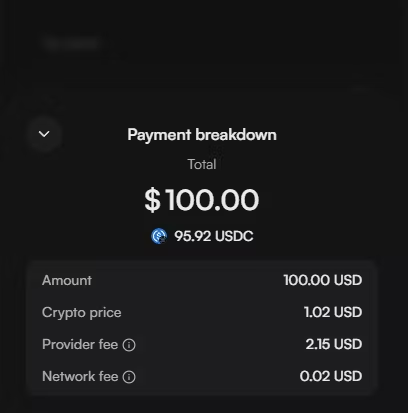
All in all, no matter the deposit option you want to use, before confirming your deposit, check the amount you will pay and the amount expected to reach your account.
Do not assume that every deposit method is free or that the same fee applies to all users.
How Long Does an Involio Deposit Take?
Each deposit method has a different processing time. For USDC deposits on the Solana network, the funds are reflected in my account in less than three (3) minutes.
For other options, such as cards, Apple Pay, bank transfers, and Google Pay, processing may take a little longer. I couldn’t confirm the processing time for every deposit method.
To understand the expected time for your transaction:
- Check the deposit instructions in your Involio account.
- Review the status provided by your sending wallet or payment provider.
- For a crypto transfer, check the transaction status on the relevant blockchain explorer if you have a transaction ID.
- Allow for any processing period stated by the provider.
- Contact official support if the transaction remains unresolved.
Avoid sending a second deposit simply because the first one has not appeared yet. First, establish the status of the original transaction.
🎟️ Read Also: Involio Referral Code (Active)
What to Do if Your Involio Deposit Is Not Showing
If you sent funds but cannot see them in your account, check the transaction before taking further action.
- Check the transaction status
If you transferred USDC, review the transaction in the sending wallet or exchange.
If a transaction ID is available, you can use the relevant blockchain explorer to check whether the transaction was submitted and confirmed.
- Confirm the receiving address
Compare the destination address used in the transfer with the deposit instructions provided by Involio.
If the address does not match, do not assume the funds can be recovered. Contact the relevant official support team with the transaction details.
- Check the network
Confirm that the sending network matches the network specified in the Involio deposit instructions.
Sending an asset over an unsupported network can prevent it from appearing in your account.
- Confirm the asset
Make sure you sent the correct asset, such as USDC, rather than a different token.
- Review any minimum deposit requirement
Check whether the amount sent meets the minimum shown by the platform or your sending service. Do not rely on a minimum quoted for another payment method.
Best Memecoin Trading Platforms: 13 Apps & Sites Compared
How to Contact Involio Support
If the details appear correct but the deposit remains missing, contact official Involio support.
Provide relevant information such as the transaction ID, asset, network, amount, and approximate time of transfer. Share only the information needed to investigate the transaction.
Never provide your wallet’s private key, recovery phrase, or password to someone claiming to help recover your deposit. Legitimate support should not need your secret recovery credentials.
Can You Deposit from Any Crypto Wallet?
Yes, you can send USDC and fund your account from any crypto wallet or exchange that supports USDC on the Solana network.
What Happens After You Deposit on Involio?
Just like funding a Fomo app, once your deposit has been processed and the funds appear in your account, you can explore the platform’s supported features.
Depending on your account and the current interface, you may be able to:
- Review available markets.
- Explore trader profiles and performance data.
- Use social feeds to research trading activity.
- Review the Mimic feature.
- Prepare and manage trades through the available trading interface.
Before opening a position, understand the asset, trading costs, position size, leverage, and potential loss. If you use Mimic, carefully check the trade settings rather than assuming another trader’s position is suitable for you.
For a complete walkthrough, read our guide on how to use Involio.
Security Tips to Fund Your Involio App Account Successfully
- Do not rush.
- Check that you are using the official website or an app linked from it.
- Do not share your password or verification codes with anyone.
- Avoid depositing through links sent by unknown social media accounts.
- Review any security or verification requirements shown during account setup.
If Involio requests additional verification before allowing you to deposit, follow the official instructions shown in your account.
That is it.





One Comment