
Involio Sign Up on Mobile & Web For Beginners (2026)

How to Create an Account and Download the Involio App for Android and iOS
If you’re ready to try the Involio app, the Involio App sign-up process is pretty straightforward because you don’t need to go through a complicated registration form or manually create a username and password before getting started with trading.
What Is the Official Involio Website?
The official website for the Invo social trading platform is invoapp.com. Although the website uses the name Involio, you may encounter both names when researching the service.
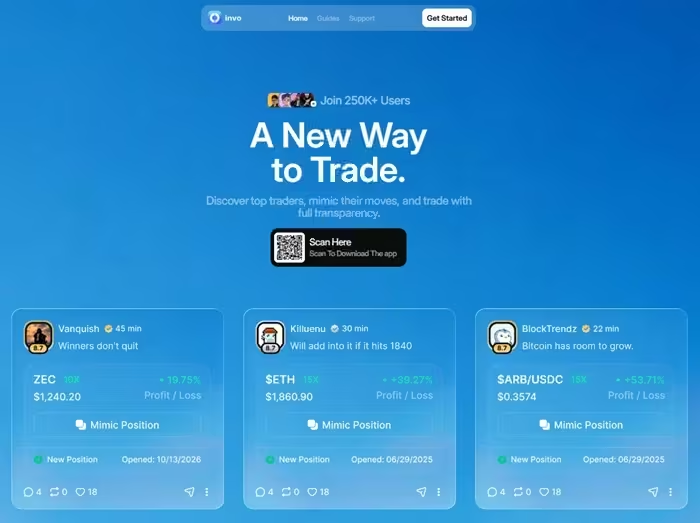
If you’re searching for the Involio app, Involio login, or Involio sign-up page, start with the official website and follow its links to access the app and set up your account.
The good thing is that we’ll cover two sign-up methods so you can choose how you want to access the platform: mobile or web.
How to Sign Up for Involio on the Web
This method is ideal for those who don’t want to use a mobile app and are comfortable signing up for and using the platform on a desktop or computer.
Follow these steps to create your account.
Step 1: Open the official website
Visit www.invoapp.com to access the official Involio website.
Scroll down and click “Get Started on Web.”
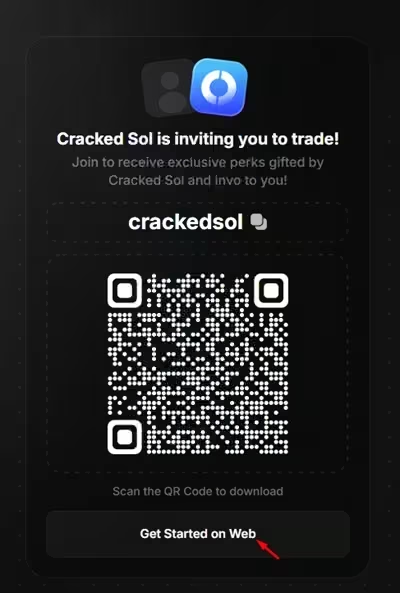
Step 2: Click on Create Account
After clicking “Get Started on Web,” you’ll be taken to the sign-up page. Click “Create Account” to proceed.
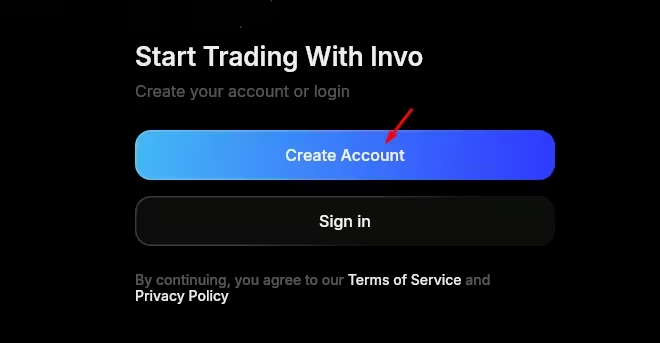
Step 3: Choose Your Sign-Up Method
On the next page, you’ll be asked to choose an account sign-up option. Available options include email, Google, and Apple ID.
Choose whichever option works best for you and proceed.
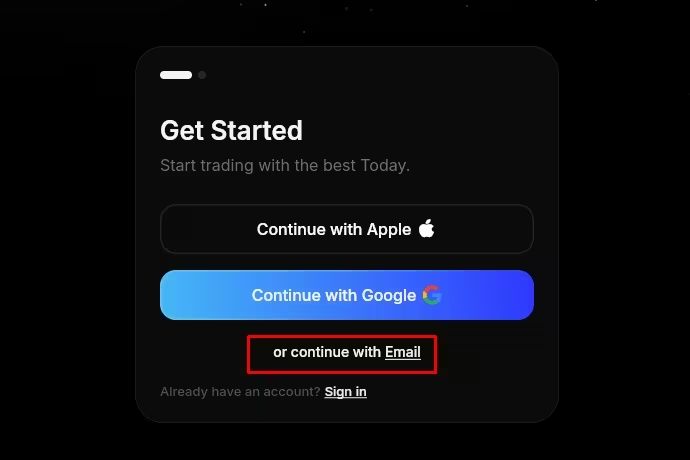
I’ll use email for this setup, but you can choose any of the available options.

P.S.: The link on this page contains our referral code. Using it won’t cost you anything extra, and I appreciate your support. If you sign up through the link, the referral code will be applied automatically, so you won’t need to enter it manually.
- Click “Create Account” once again to continue.
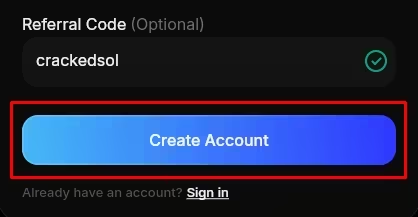
Step 4. Enter the Verification Code
Involio will ask you to verify your email by entering the verification code sent to the email address you provided.
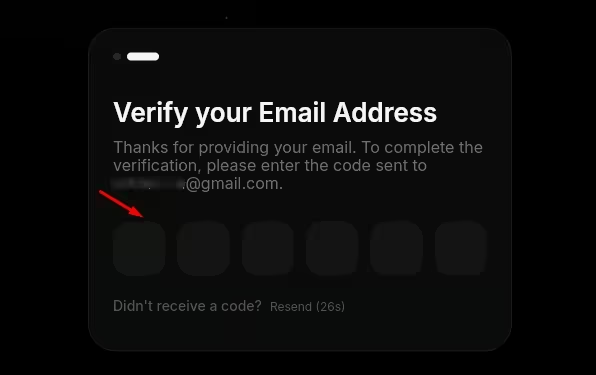
- If you sign up with Apple or Google, you’ll be redirected automatically to the next step without needing to enter an email verification code.
- Enter the verification code, complete the CAPTCHA, and proceed.
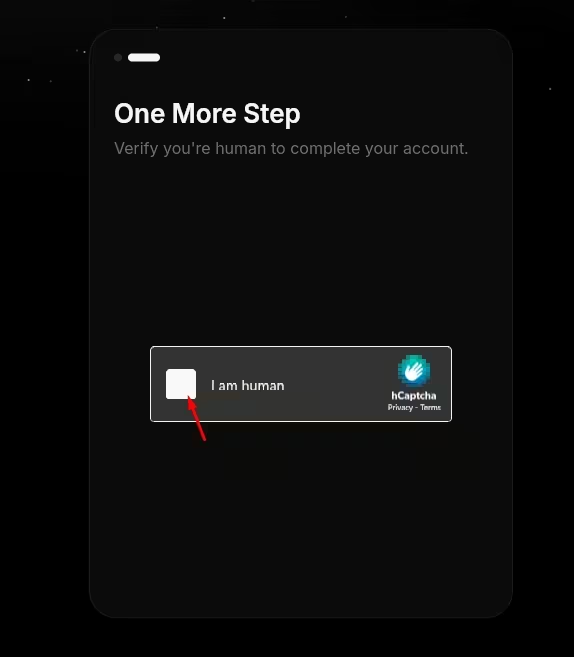
Step 5: Sign In and Explore the Platform
After entering the verification code and solving the CAPTCHA, you’ll be redirected to your account. From there, you can explore the available feeds, trader profiles, portfolio pages, and account settings.
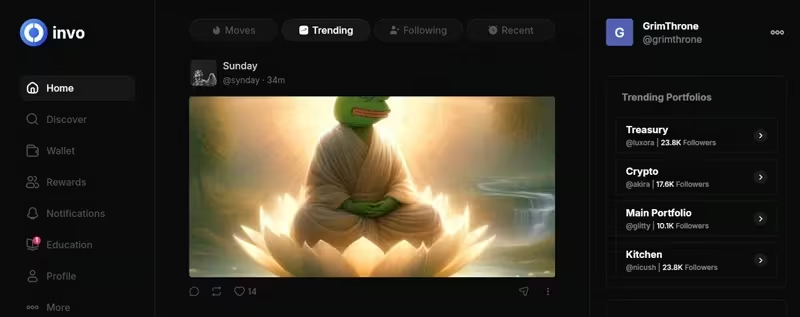
That’s all it takes to sign up on the web!
Let’s now look at how to do the same using the mobile app for Android and iOS users.
How to Download the Invo App for Android and iOS
To get started:
Step 1: Go to the Official Invo App Website
Start by visiting the official Invo app website at invoapp.com (ref)
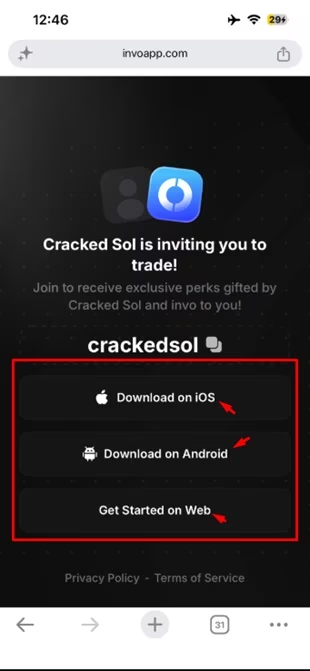
Step 2. Download the app
Choose your device type and download the app.

Step 3: Choose a Sign-Up Option
The Invo app will ask you to choose your preferred sign-up method. You can choose Google, Apple, or email. Select the option that works best for you.
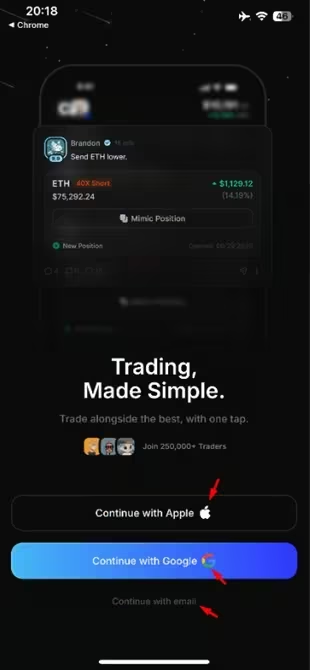
Step 4: Authorize Account Access
Depending on the option you choose, authorize access to your account to proceed.

I’ll use a Google account for this step. Below is what the authorization prompt looks like.
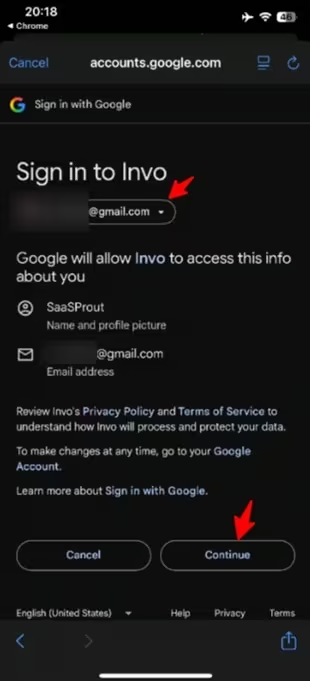
Step 5: Log In to Your Account
Click “Continue” and log in to access your dashboard.
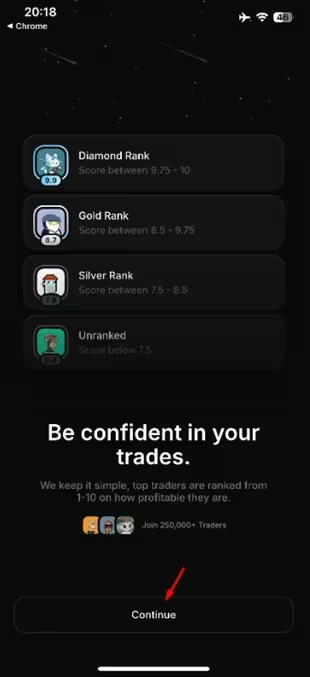
– Explore the different account sections.
That’s all!
Verification Sign-Up Issues with the Invo Trading App
If you encounter an issue with not receiving a verification email or code, here are a few things you can do.
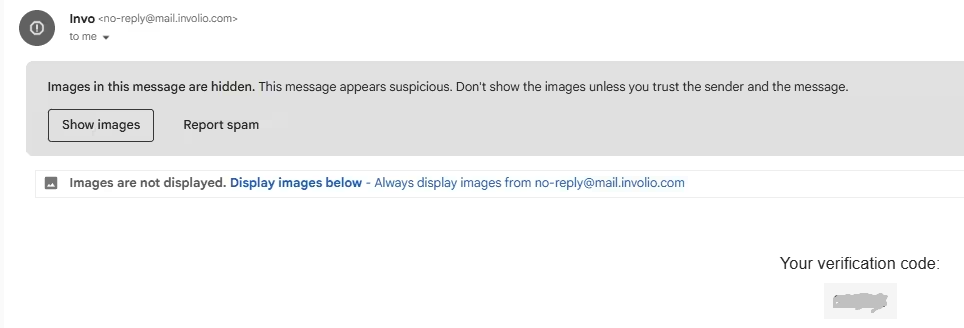
- Check your spam or junk folder.
- Confirm that you entered the correct email address.
- Wait briefly before requesting another code.
- Follow any resend instructions displayed by the platform.
- Contact official support if the problem persists.
P.S.: Never share your verification code with someone who contacts you outside the official signup process.
Best Memecoin Trading Platforms: 13 Apps & Sites Compared
How to Set Up Your Involio Wallet
If you want to trade, you will need to follow the wallet setup and funding instructions.
Selecting Deposit automatically creates a crypto wallet associated with the email address used to register.
On the app, click “Deposit.” If you’re using the web platform, go to Wallet and click “Deposit.”
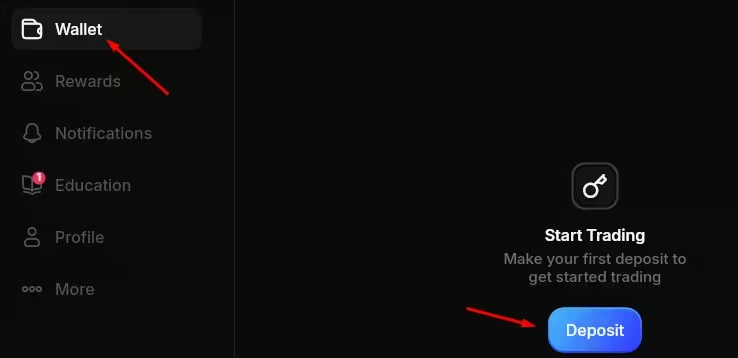
Deposit Options:
There are two primary deposit routes:
- Fiat payment: Apple Pay or debit card, where available and approved.
- Direct crypto transfer: USDC sent to your wallet using a supported network.
🎟️ Read also: How to Deposit on Involio (Invo App)
Can You Use Involio Without Depositing Funds?
Creating an account and placing a trade are separate steps. You may be able to explore some public profiles, feeds, and trader histories without funding your wallet.
However, executing a live trade requires the appropriate wallet setup and sufficient available funds. Check the current platform experience for which features are accessible before depositing.
You do not need to rush into trading simply because you have completed registration. Take time to understand the interface and risks first.
The good thing is that if you’re not satisfied with your results, you can always withdraw your funds and move on. However, like other users, if you take your time to learn and apply what you’ve learned, you can make money and withdraw your earnings in USDC.
Can You Sign Up with an Involio Referral Code?
Yes, the Invo app referral program lets users share a unique referral link or use their Involio username as a referral code when a friend signs up manually.
If someone invited you:
- Ask them for their referral link or username.
- Open the link or start signing up through the official website.
- If signing up manually, enter their username in the referral field if one is provided.
- Check your account or ask the referrer to confirm that the referral was recorded.
A referral code does not automatically guarantee a signup bonus. Involio’s published program focuses on rewards for eligible referral activity, and terms can change.
Read our Involio Referral Code guide for details about referral rewards and eligibility.
Is Involio Free To Sign Up For?
Yes. It is.
However, creating an account is different from placing trades. Involio publishes a perpetual-futures fee schedule, and other costs may depend on the payment method or transaction type; for perpetual futures, the Tier 0 taker fee is 0.0768%, and the maker rebate is 0.0480%.
These are trading rates, not a complete schedule of deposit and withdrawal charges. Check the current rates and transaction costs displayed in your account before trading.
How To Access Involio on Mobile
Involio has official mobile app listings, as we saw earlier. After downloading the app through the official Involio website at involio.com, you can access your account anytime.
Note: If you signed up using a different method than the one in this guide, make sure you do the following before installing the app and signing in using another method:
- Check the developer name – Involio Inc.
- Confirm that the listing links to the official website.
- Review the permissions requested.
- Avoid unofficial APKs or installation files from unknown sources.
- Keep your device and app updated.
App availability and compatibility may vary by device and region, so check your own app store for current options.