
Fomo Web App: How to Use Fomo on PC & Desktop

If you’ve been using Fomo on your phone and want a bigger screen, there’s good news: you can now use Fomo directly from your PC or desktop browser.
That is, you don’t need to install an Android emulator or look for a Fomo APK for your computer, because Fomo has an official web version that lets you access your Fomo account from a desktop browser.
And it’s not just a basic website.
With it, you can trade, view your positions, discover tokens, follow traders, check leaderboards, and use the social features you’ve probably already seen in the mobile app.

And yes, the web version is the same Fomo account on a bigger screen, with your profile, balance, and positions available across mobile and web as it is on mobile.
So, if you’re searching for Fomo Web App, Fomo trading app for PC, or Fomo trading web, here’s how it works.
What Is Fomo Web?
Fomo Web is the desktop version of the Fomo trading app for PC that you access through your browser.
Instead of installing the mobile application, you can go directly to Fomo official website on Fomo.Family, and access Fomo Web from your computer.
Officially launched in April 2026, the desktop trading experience is designed around the same user journeys available on mobile.
The important part is that Fomo Web isn’t a completely separate Fomo account. You use your existing Fomo identity.
That means you can still trade 100% by buying a token on your phone → opening Fomo on your PC → and seeing the same position, or opening a trade on your PC → pick up your phone → and manage the same position. Here is an example below.
My trade on the Fomo Mobile app
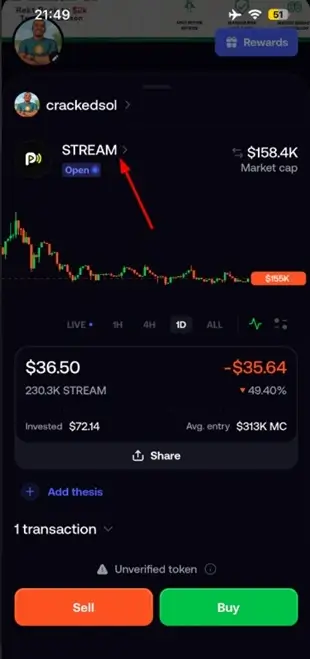
My Trade on the Fomo Web version

The same trade profile and design.
How to Use Fomo Trading App for Pc
Using Fomo on your computer is straightforward. Let’s get started by creating an account.
Step 1: Go to Fomo.family
On your PC or Mac, open your preferred web browser. You can use a modern browser such as Chrome, Firefox, Edge, or Safari.
To get started, visit the official Fomo website at fomo.family [ref]
Disclosure: The above link is our referral link, which gives you 10% off all trading fees when you use the FOMO trading platform.
Step 2: Create an account
For a new account, click on Start Trading.

Step 3: Choose a Sign-up Profile
You have two options to sign up. You can use your Google account, and you can also use your Apple ID account – anyone you use is fine.
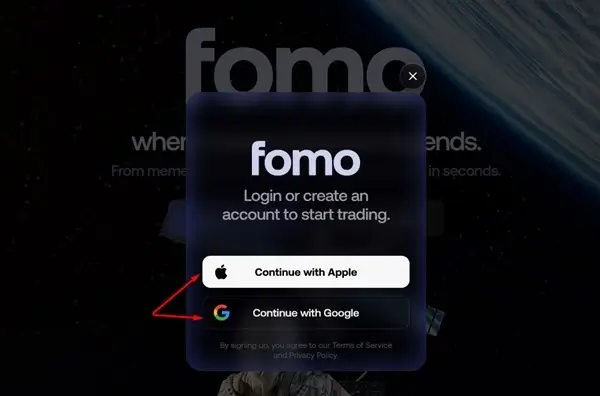
Step 4. Confirm Email to Log In
If you choose Google, select the Google account you want to use and continue. Likewise, if you choose Apple, select your preferred Apple ID and proceed with the sign-up process.
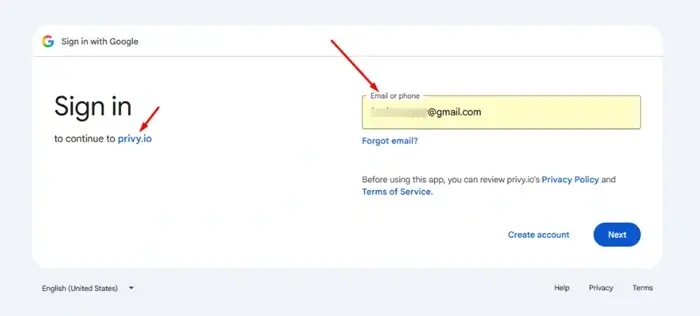
Step 5. Access your dashboard
As a new user, you’ll be redirected to your new account – welcome to the Fomo trading family.
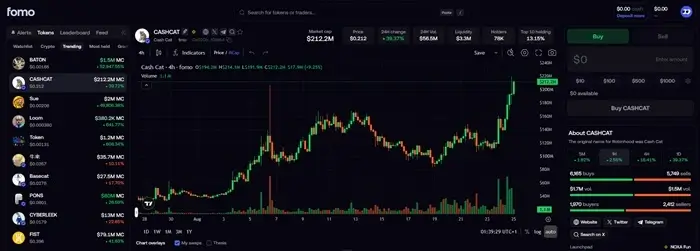
Once you’re signed in, your existing Fomo account information should be available.
That includes your:
- Profile
- Balance
- Positions
- Following/social graph
- Trading activity
P.S. You don’t need to create another account simply because you’re using a computer. Use the same steps and log in.
Step 7. Edit Your Fomo Crypto Web App Profile
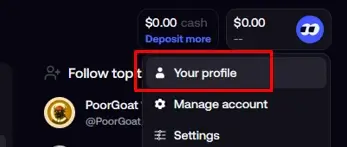
Your Profile section is where you can update your FOMO profile information, including your profile name, display picture (DP), banner, and description.
To make changes, go to Profile → click the pencil icon next to the details you want to edit, then update your information and save the changes.
Learn more: How to Use FOMO App as a beginner.
Step 8: Manage Your Fomo trading web app account
There are several things you can manage from your FOMO account.
- Transfers – View your account transfers and transactions.
- Balances – Check your available balances, and blue them if you want.
- Settings – Manage and update your account preferences.
- Earnings – Check your referral and affiliate earnings.
- Log Out – Securely sign out of your FOMO account.
Step 9. Find Memecoins on Fomo Web
You can use the web platform to look for trending tokens and see what other traders are doing.
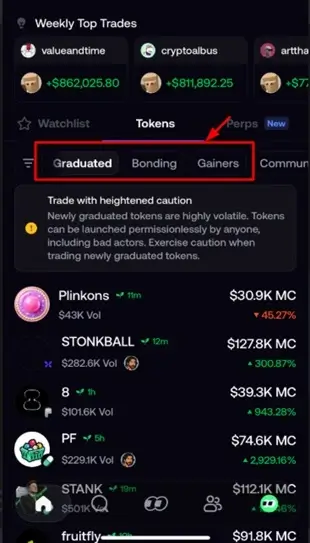
To find new and trending memecoins, check the top left, and you will see Tokens → Crypto→ Graduated → Trending → Most Held and Bonding.
Step 10. Use the Fomo Web Trading Charts
This is one area where the web version has become particularly interesting.
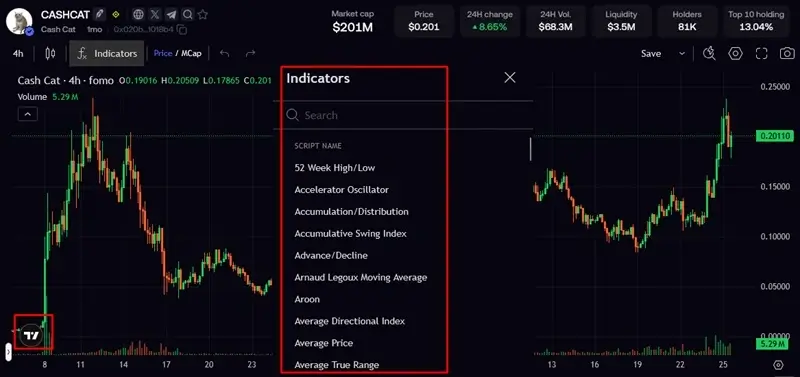
Fomo announced a partnership with TradingView in April 2026 to bring professional charting tools directly into Fomo Web.

That means you can access technical indicators, drawing tools, professional charting, price analysis, and social trading information alongside the charts – see 110+ Memecoin Trading Tools.
To use FOMO Charts on PC, open a token page in FOMO Web. You’ll see the integrated chart with technical indicators, and you can use the drawing tools to mark up the chart.
Step 11. Follow Traders on Fomo Web
You can discover traders, view their activity, and follow accounts you’re interested in.
But don’t blindly copy a trader because of a high P&L. Their entry price, position size, and timing may be completely different from yours. Use trader activity as research, not as a guarantee of what you should buy.
Step 12. Fund your Fomo – never miss out app on web
To fund, go to the top right corner of your Fomo account web page.
Click on Deposit → Choose a deposit option → I recommend USDC on the Solana chain. Send the required amount and get it deposited into your account.
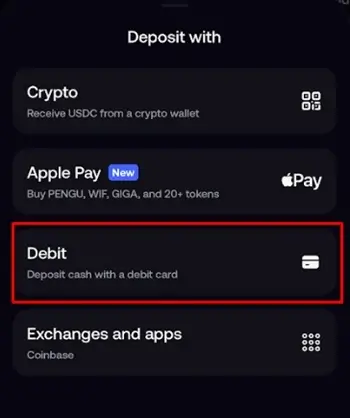
For a complete walkthrough, see How to Fund a Fomo Account
Step 13. Buy Crypto on Fomo Web
Once you’re logged in, you can browse the available assets and open a token page.
The general process is: Find the token → Review the token page → Check the chart and information → Enter your trade → Confirm the transaction
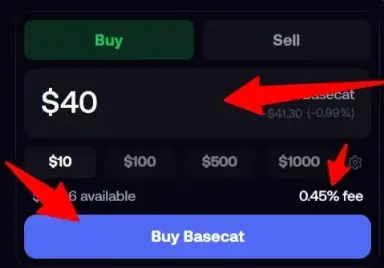
For a complete walkthrough: See How to Buy and Sell Crypto on Fomo App
Step 14. Close a Trade on Fomo Web
One of the useful things about having Fomo on your PC is that you can also manage positions from a larger screen.
Once you’ve made a profit and are ready to close the trade, locate your position through Fomo Web, enter the amount you want to sell, and click on sell.
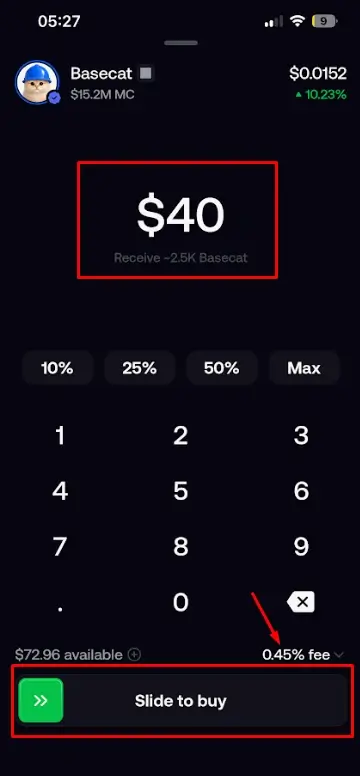
If you’re new to selling: Check out How to Close a Trade on the Fomo App
Step 15: Withdraw on FOMO Family Web App
Go to the top-right corner of the page and click “Withdraw.”

Copy the receiving wallet address and paste it into FOMO. Enter the amount you want to withdraw, review the transaction details carefully, and confirm the withdrawal.
That’s it.
For a complete step-by-step walkthrough, see our guide on how to withdraw from FOMO as a beginner.