
FOMO App Sign Up: How to Create Your Fomo Account

If you’re ready to try FOMO, the FOMO App sign-up process is pretty straightforward because you don’t need to go through a complicated registration form or manually create a username and password before getting started with trading.
FOMO App sign-up is the process of creating a FOMO account through the platform’s available mobile or web sign-in options. You can start from the official FOMO website, choose how you want to access the platform, and follow the registration prompts.
How to Sign Up for the FOMO App on Mobile and Desktop Devices
Let’s go through it step by step.
Step 1: Go to the Official Fomo Website
If you are using Desktop or Computer, start by visiting the official FOMO website at https://fomo.family/ [ref]

Once you’re on the website, click “start trading” to get started with FOMO.
Tip: Always make sure you’re using the official FOMO website before entering your account information [this is also why you need to use an official referral link that redirects to the correct website]. We’ve linked our referral link above to help you with this.
This is particularly important because there are third-party websites using the FOMO name and unofficial APK download pages.
Step 2: Choose Your Device
Fomo can be accessed from different devices, so choose the option that matches how you want to use the platform.
You can use:
- Android
- iPhone/iOS
- Desktop/Web
If you’re using a phone, choose the appropriate mobile option.
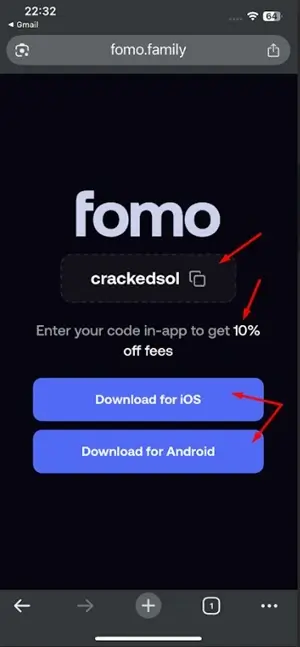
Also, if you want to use FOMO from your computer, continue with FOMO Web instead. After selecting your device or opening FOMO Web, choose the option to Sign Up or create an account.
P.S: The steps are the same for mobile phone sign-up and PC. One useful thing about FOMO Web is that you don’t need to create a completely separate desktop account.
Let’s see how to integrate all of them for your better understanding.
Step 3: Choose Your Sign-In Method
FOMO allows you to use supported account sign-in methods rather than going through a long traditional registration form.
Depending on the platform and current sign-up flow, you can sign up using options such as:
- Apple ID
- Google account
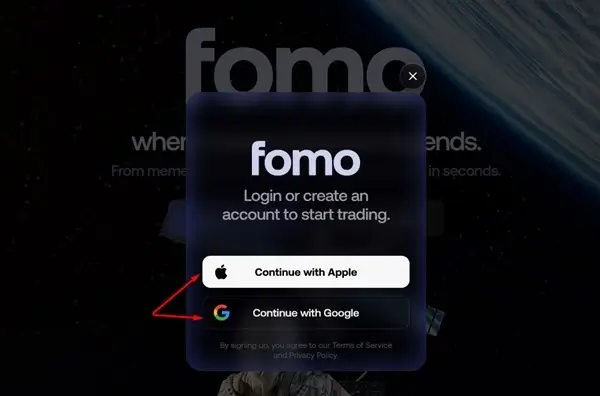
If you’re using Google or Apple, select the appropriate option and follow the authentication prompts.
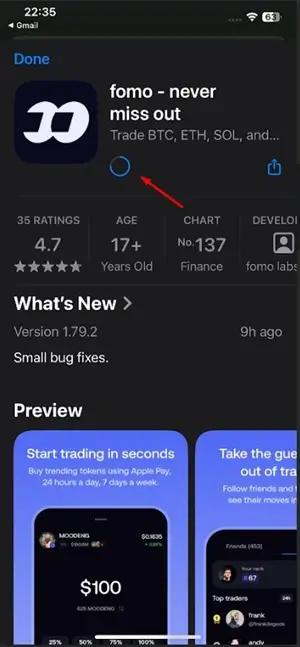
And if you’re on Mobile, go ahead and download the app.
Disclosure: if you trade using our referral code, we receive a small share of the trading fees only if you actively trade on the Fomo app. If you don’t trade, we earn nothing.
Step 4: Complete Account Details
During registration, you’ll be asked to complete the information needed to create your FOMO account – to choose an email account if you chose Google. The same for Apple.
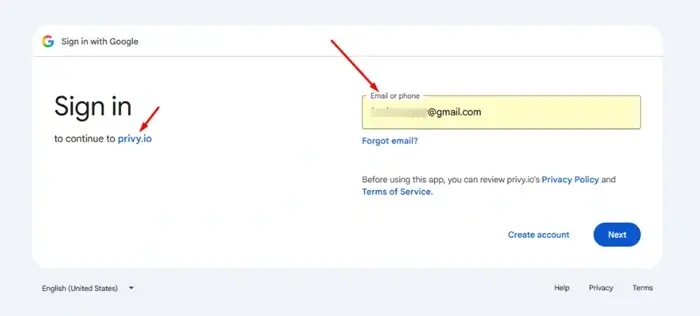
Step 5: Confirm Referral Information
If you used our referral link above, it will automatically be entered and approved for onboarding + 10% off on all trading fees!
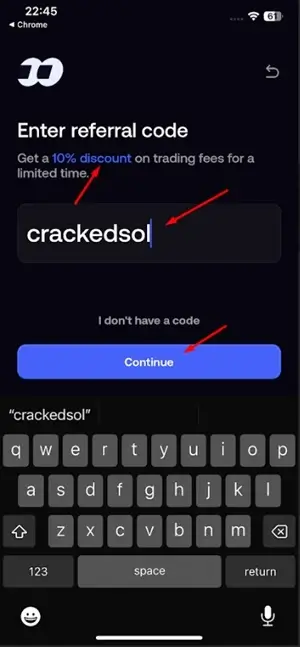
Don’t rush through this part.
To get the 10% off on fees, kindly confirm that the referral information is correctly applied before completing your registration.
When you do, the discount will be added to your Fomo trading account. With this, you get lower fees on the platform as compared to general users who signed up without a Fomo referral link.
See below – you should see the 10% discount applied to your account.
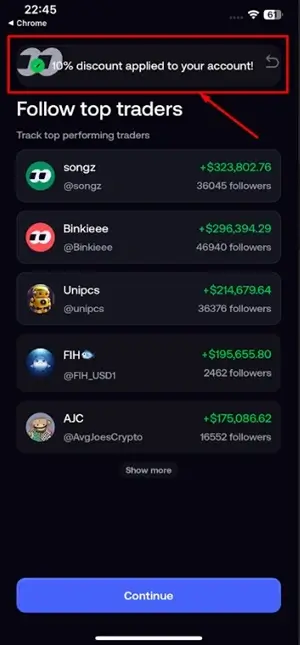
Kindly note: If you’re using the desktop/web version, you may not see this step. However, if you signed up through the referral link or entered the referral code during registration, the 10% discount should be applied automatically to your account.
Step 6: Access your dashboard
Once you’ve completed the sign-up prompts, finish the required Google or Apple confirmation for your FOMO account.
After the process is complete, you can log in and access your FOMO account and start exploring the platform.
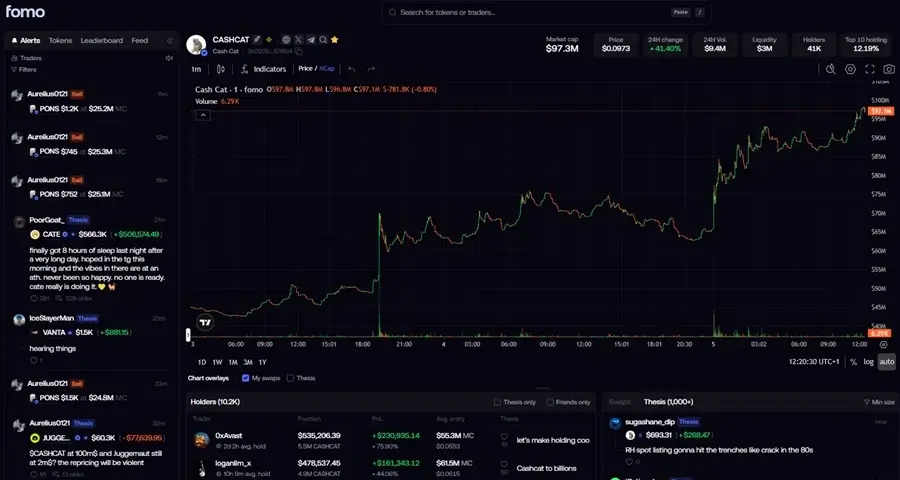
From there, you can begin exploring the platform.
You’ll be able to access areas such as:
- Your portfolio
- Search
- Trending assets
- Social feeds
- Trader profiles
- Your positions
- Wallet/account information
- Trading features, and more.
For a complete breakdown of how to set up and use the FOMO platform, we’ve put together a detailed step-by-step guide covering everything you need to know.
From signing up to making your first trade, we’ve got you covered. You’ll love this one.
What next?
There are different things to do, and I do not intend to make this guide long since we’ve answered the main question.
Learn more:
Deposit – Learn how to add money and fund your FOMO account
Withdraw – See how to withdraw your funds after a successful trade
Basic Trading – Learn how to buy and sell crypto on FOMO.
Just a few quick answers, and we wrap it up.
Can You Use the Same FOMO Account on Mobile and Desktop?
Yes. You don’t need to create a separate FOMO account for your phone and computer. You can access your account through the supported mobile and web experiences.
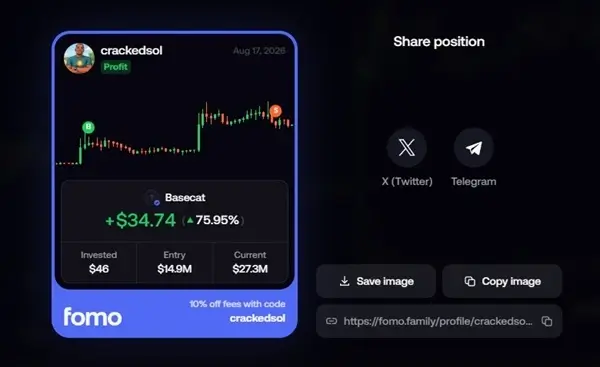
For example: Open a trade on your phone, access FOMO on your desktop, and see the same position. See below.
My trade on mobile

My trade on desktop
FOMO App Sign Up Problems
Sometimes the problem isn’t your account. You may have trouble signing up because of:
- An incorrect login method – use another method.
- A problem with your Apple account – try a Google account.
- Browser issues – use another browser.
- An outdated app – update the app
- Regional availability – change location or go to alternative platforms.
- Temporary technical problems – will be fixed with time.
- A referral link that isn’t being recognized – request a new one or send us an email.
If something doesn’t work, don’t immediately create another FOMO account. First, check that you’re using the correct sign-in method and the official FOMO platform.
And if you’ve done everything and it’s still the same, you can contact us, and if it is not what we can assist with, you can write to Fomo via support@fomo.family for support questions and concerns.
Don’t miss:
Make Money – Discover 7+ ways to potentially make money through the FOMO platform.
Close FOMO – Learn how to delete your FOMO App account permanently.