TradingView Sign Up: Create an Account & Get a Free $15
TradingView remains one of the best tools for memecoin and general crypto trading.
Its charting integration was already widely adopted by crypto trading platforms, probably by 90% of them, even before tools like Alertsify introduced free charts for copy trading.
However, TradingView is more than just a charting platform. Its powerful market analysis tools are one of the main reasons for its popularity.

If you want to start using TradingView but don’t know how to create an account, there’s good news: you can get started in just a few steps.
The TradingView sign-up process is straightforward. You can register for free using your email address, Google account, or a supported social account, verify your details, and start exploring the platform’s charting and market analysis tools.
TradingView also has a referral offer that gives you a $15 coupon towards your next subscription after you sign up through a referral link and complete your first paid purchase.
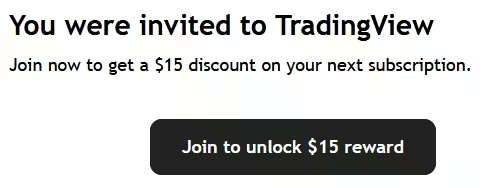
You can use the FomoByte TradingView referral link to register and qualify for this offer. More on this later.
And just to add, TradingView provides a free Basic plan, so you don’t have to purchase a subscription immediately after creating your account. You can explore its charts, indicators, watchlists, screeners, and other tools before deciding whether to upgrade.
However, to claim the $15 bonus, you must subscribe to a Premium plan within three months of opening your account.
It’s important to remember that this offer is intended for new TradingView users who register through an eligible referral link.
In other words, if you already have a TradingView account, you’re not eligible unless you start afresh with a new account.
In this guide, I’ll walk you through how to sign up for TradingView, register with email or Google, verify your account, access the free plan, choose a subscription, and claim the $15 referral coupon.
What Is TradingView?
TradingView is a financial charting and market analysis platform used by Forex, Memecoin traders, and investors to research different financial markets.
It provides interactive charts, technical indicators, drawing tools, screeners, price alerts, trading ideas, and other resources for analysing market movements.
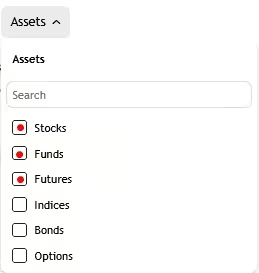
You can use TradingView to follow:
- Cryptocurrencies such as Bitcoin, Ethereum, Solana, and other digital assets.
- Stocks and ETFs.
- Forex currency pairs.
- Commodities such as gold and oil.
- Indices and futures.
- Bonds and other financial instruments.
How to Sign Up on TradingView as a Beginner
You can create a TradingView account through its official website using various sign-up options, which we’ll explore shortly.
Follow these steps.
Step 1. Visit the official TradingView Website
Start by visiting the official TradingView website through the FomoByte TradingView referral link.
This will take you to the TradingView homepage with the referral attribution attached to your registration.
Click on “Join to Unlock $15 reward”, and you will be redirected to the sign-up pages.
Step 2. Choose your preferred Registration Method
Once the TradingView website opens, you will have different supported sign-up options.
The available methods include:
- Email address.
- Google.
- Apple.
- Other supported social sign-in options displayed on the registration page.
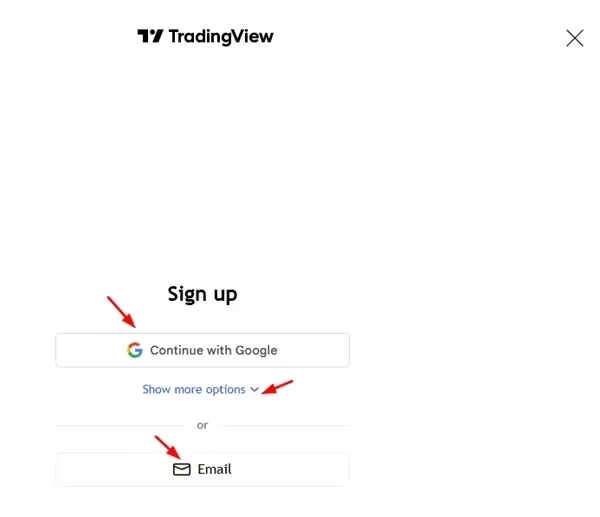
- If you choose Google, you’ll need to select the Google account you want to use and approve the sign-up request.
- If you register with an email address, you’ll need to provide a username, email address, and password.
- The same applies to other social sign-up options. Simply select the account you want to connect to TradingView and complete the registration process.
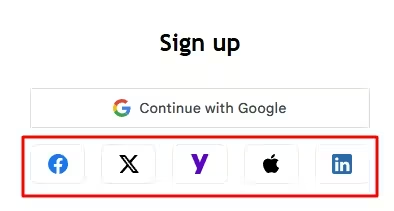
- Confirm your sign-up option: I’ll use my Google account. I’ll select the account I want to use and confirm the integration.

- If you register using an email address, TradingView will send you an account activation email. Open your inbox and click the verification link. Check your spam or junk folder if the message doesn’t arrive in your main inbox.
Step 3. Create Your TradingView Username
After finishing your sign-up, you will be redirected to choose a username that you want to use on TradingView.
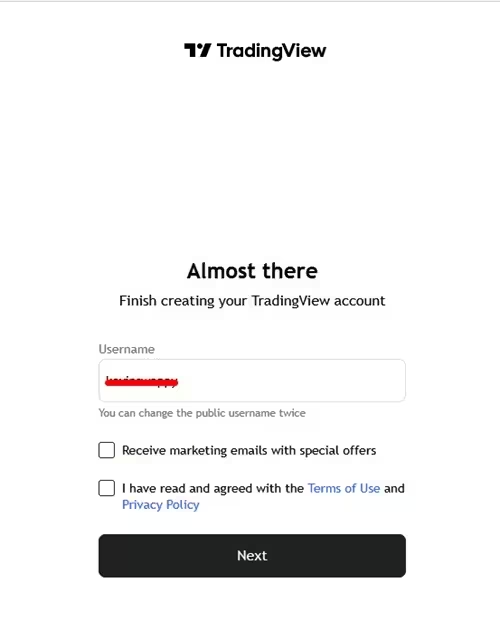
Your username is part of your public TradingView profile, so select something appropriate and easy to recognize.
Important: TradingView’s account guidance says your public username can only be changed once after signing up. Choose carefully rather than using a temporary name.
Step 4. Access your TradingView Dashboard
After completing the required registration and verification steps, you can log in to your new TradingView account if you signed up using an email address.

However, if you used Google, you’ll be automatically logged in after completing the integration. You can then access your TradingView dashboard and explore the available features such as “Markets, Products, Community, Indicators, Brokers, Career, Strategies, Accessibility, and more.
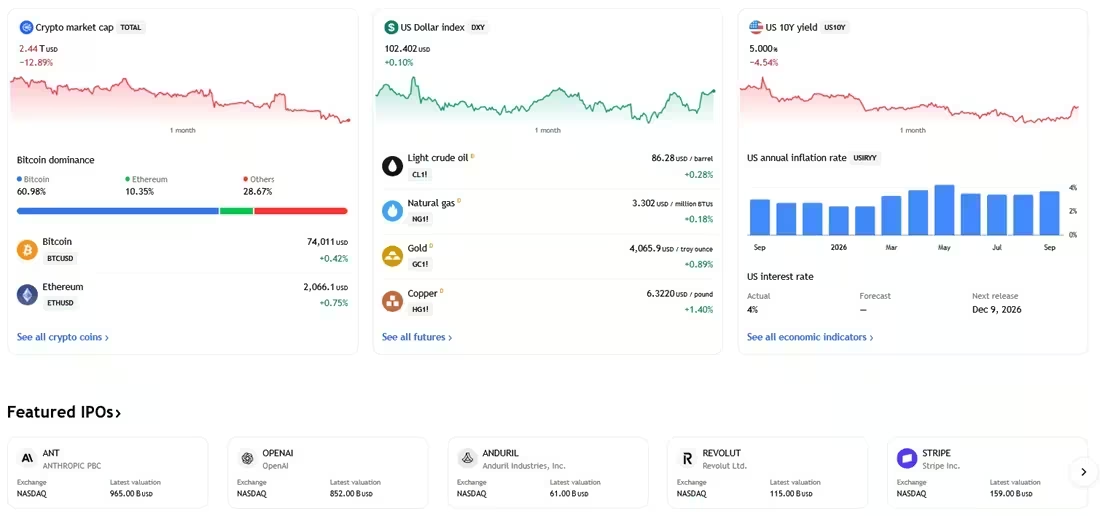
That covers the account creation process. Now, let’s move on to claiming the $15 TradingView Bonus After Signing Up.
Step 5. Purchase a Paid Subscription
After registration, choose a paid TradingView subscription and complete your first purchase within the qualifying referral period.
Currently, they offer 4 pricing plans: Essential, Plus, Premium, and Ultimate.
- To get started, click on “Upgrade.”

From there, choose your preferred subscription plan. You can go for the monthly plan.
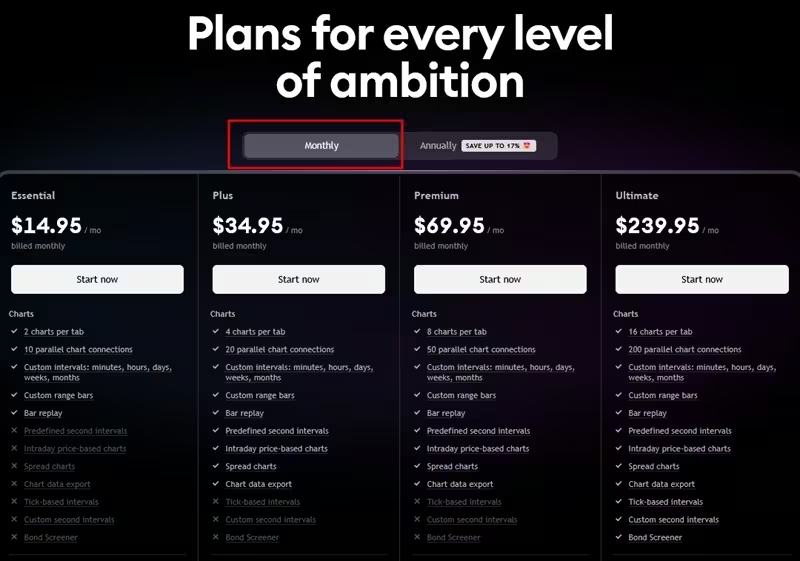
Or save up to 17% with the annual plan.

The annual plan also saves you the hassle of monthly payments, so you can focus on using the trading tools instead of worrying about recurring subscriptions.
Note: As mentioned earlier, TradingView’s current referral information requires the new user to subscribe within 90 days of joining through the referral link.
Step 6. Receive Your $15 Coupon
From the pricing plans available, choose your preferred plan and subscription period, then proceed to confirm your payment.
If you choose the Annual Plan, you get two benefits: a 17% discount on the annual subscription and a $15 reward. The 17% discount amounts to $480 in savings.

Click on “Next” to proceed with the payment.
Optional Add-on: If you’re a forex trader, consider adding concentrated market data. First, check whether your trading platform already provides this data. If it’s essential to your trading strategy, select the add-on that best suits your trading needs alongside your TradingView plan.

Let’s move on.
- Choose a Payment Option
Select your preferred payment method. Available options vary by country.
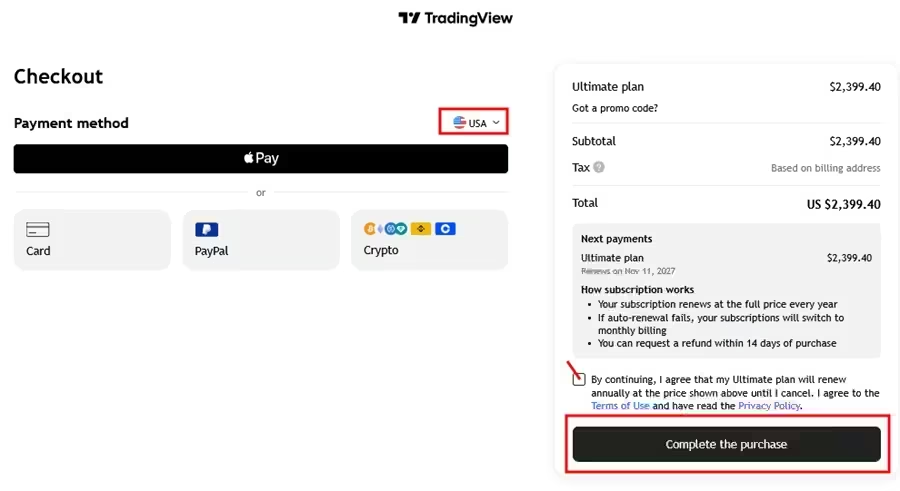
For instance:
- UK: Card, PayPal, Crypto, Google Pay, and Revolut Pay.
- USA: Card, PayPal, Apple Pay, and Crypto.
Tick the “Terms” box and complete your payment.
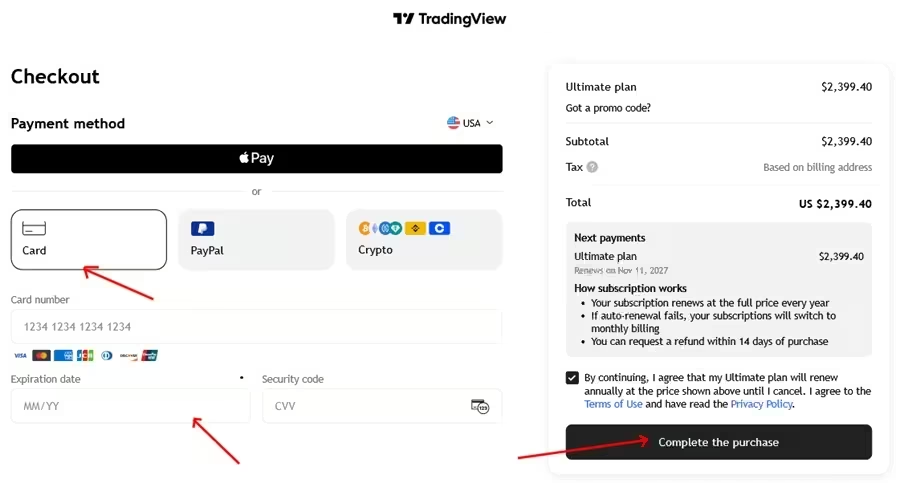
In my experience, card payments (first), then Apple Pay, and Google Pay are among the fastest options.
That’s all!
After completing your first paid subscription, TradingView sends the $15 coupon to the email address associated with your account.
Even if you signed up using Google, you’ll receive the coupon in your email inbox.
Important: The coupon is valid for 12 months. It’s a one-time discount that you must enter manually when purchasing a subscription. It does not automatically reduce the cost of future renewals.
Ready to get 17% off your annual plan (saving $480) and claim your $15 reward? Click below to get started.
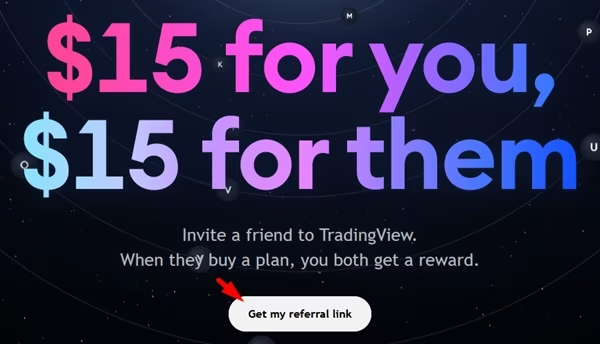
Remember: Once you sign up, you can also earn a free $15 reward when you refer a family member or friend.
Check your dashboard to find your referral link, which you can share and use to claim rewards of up to $100.
Is TradingView Sign Up Free?
Yes. Creating a TradingView account is free.
You can register, access the Basic plan, and explore several charting and market research features without paying for a subscription.
TradingView’s free Basic plan is suitable for beginners who want to learn how to use the platform before committing to a paid plan.
However, some features and usage limits are restricted compared with paid subscriptions.
For example, paid plans provide higher limits for charts, indicators, alerts, and other advanced features.
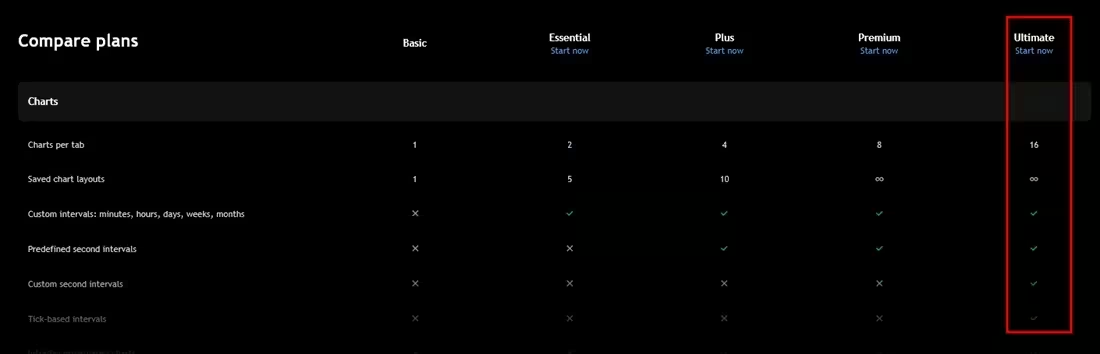
You can compare the available subscriptions on the official TradingView pricing page.
TradingView Plans: Which Subscription Should You Choose After Signing Up?
After creating your account, you can continue using the free Basic plan or upgrade to a paid subscription.
TradingView currently offers four main individual paid plans:
- Essential
- Plus
- Premium
- Ultimate
Each subscription has different limits and features.
TradingView Basic
Price: Free
Basic is the free TradingView plan.
It allows you to access charts, use essential technical analysis tools, create watchlists, and explore financial markets.
It’s a good starting point if you’re new to TradingView and want to understand how the platform works, mostly as a Forex or Memecoin trader.
TradingView Essential
Essential is the entry-level paid subscription.
It provides additional charting capacity, more indicators, and more alerts than the free plan.
It’s suitable for traders who need more flexibility for their daily market analysis.
TradingView Plus
Plus provides higher limits for charts, indicators, and alerts than Essential.
It may suit active traders who monitor several markets and use multiple indicators when analysing trading opportunities.
TradingView Premium
Premium is designed for traders who need more advanced charting capacity and higher alert limits.
It provides additional flexibility for users who follow multiple assets and trading strategies.
TradingView Ultimate
Ultimate is TradingView’s highest individual subscription tier.
It provides the highest limits among the individual plans and is designed for users with more demanding charting and market analysis requirements.
TradingView Subscription Comparison
| Plan | Price | Best For |
|---|---|---|
| Basic | Free | Beginners and casual chart users |
| Essential | Paid | Traders who need more charting features |
| Plus | Paid | Active traders who monitor multiple markets |
| Premium | Paid | Advanced traders and technical analysts |
| Ultimate | Paid | Users who need the highest individual plan limits |
TradingView’s prices can vary depending on the billing period, currency, location, and applicable taxes.
TradingView Website vs. Desktop App: Which Should You Use?
You can use TradingView through its website or download its desktop application.
Both options give you access to your account, but the desktop application offers a dedicated workspace for traders who prefer working outside a browser.
TradingView Website
The website is the easiest way to get started.
You don’t need to install anything. Open TradingView in your browser, sign in, and access your charts.
The web version is also the recommended route for completing a referral-linked subscription purchase under the current Partner Program rules.
TradingView Desktop App
TradingView offers desktop applications for Windows and Mac.
The desktop app provides a dedicated trading workspace, allowing you to organise charts and monitor markets without keeping everything inside a browser tab.
You can download it from the official TradingView desktop page.
TradingView Mobile App
TradingView also provides mobile applications for Android and iOS.
The mobile app lets you monitor charts, follow watchlists, receive alerts, and access your account while away from your computer.
Download it from the official TradingView website.
What Can You Do After Creating a TradingView Account?
Once you’ve completed your TradingView registration, you can start exploring the platform’s features.
Here are some of the things you can do with your new account.
- Analyse Cryptocurrency Charts
TradingView is popular among cryptocurrency traders because it provides charts for thousands of digital assets.
You can analyse Bitcoin, Ethereum, Solana, and other cryptocurrencies using different timeframes, indicators, and drawing tools.
You can also monitor trading pairs across supported exchanges.
- Use Technical Indicators
TradingView provides built-in technical indicators for analysing market movements.
Some commonly used indicators include:
- Relative Strength Index (RSI).
- Moving Average Convergence Divergence (MACD).
- Bollinger Bands.
- Moving averages.
- Volume indicators.
- Fibonacci tools.
You can combine indicators to build your own technical analysis strategy.
- Create Price Alerts
You can set alerts to notify you when a cryptocurrency, stock, or other financial instrument reaches a specific price.
Depending on the alert type and subscription limits, TradingView can also notify you when indicators or drawing tools meet selected conditions.
This is useful if you don’t want to monitor charts throughout the day.
- Use TradingView Paper Trading
TradingView includes a paper-trading feature that lets you practise buying and selling without risking real money.
You can use virtual funds to test strategies, practise order placement, and evaluate your trading decisions.
It’s especially useful for beginners who want to become familiar with trading tools before using a live brokerage account.
- Explore Trading Ideas
TradingView has a community where users publish market analysis, trading setups, and chart ideas.
You can explore other traders’ ideas, follow authors, and publish your own analyses.
Remember that community ideas are individual opinions, not guaranteed trading signals.
- Use Stock and Crypto Screeners
TradingView provides screeners that help users filter assets using different market and financial criteria.
You can use them to research stocks, ETFs, cryptocurrencies, and other instruments.
- Create Watchlists
Watchlists help you organise the assets you want to monitor.
For example, a cryptocurrency trader can create a list containing BTC, ETH, SOL, and selected memecoins.
This makes it easier to follow market movements without searching for each asset repeatedly.
TradingView Sign Up Problems: Common Issues and Solutions
Sometimes users experience problems while creating or accessing their TradingView accounts.
Here are some common issues and how to resolve them.
- TradingView Verification Email Not Received
If you don’t receive the verification email after registering, check your spam or junk folder.
Also confirm that you entered the correct email address.
If the email still doesn’t arrive, follow TradingView’s account verification or support instructions.
- TradingView Says My Email Is Already Registered
This usually means the email address is already associated with a TradingView account.
Instead of creating another account, try signing in using the existing credentials.
If you’ve forgotten your password, use the account recovery option.
- I Can’t Log In After Signing Up
If you just registered with email, make sure you have completed the verification process.
TradingView states that new users may not be able to log in until they verify their account.
Also check that you are using the correct login method. If you registered through Google or Apple, use the corresponding social sign-in option.
- I Forgot My TradingView Password
Open the TradingView sign-in page and select the password recovery option.
Enter the email address, username, or verified phone number associated with your account and follow the recovery instructions.
If you registered using a social login, sign in through the same service.
My TradingView Referral Link Didn't Track My Registration
If you’re registering through a referral offer, open the FomoByte referral link before creating your account.
Avoid registering first and attempting to add a referral link afterwards.
TradingView’s referral system attributes new users through the referral link used during registration.
TradingView Sign Up FAQs
How Do I Sign Up for TradingView with Google?
If you prefer not to create another password, you can use Google sign-in if it appears among the available registration options.
Here’s how:
- Open the FomoByte TradingView referral link.
- Click Sign up.
- Select the Google option.
- Choose the Google account you want to use.
- Follow the authentication instructions.
- Complete any additional account setup required by TradingView.
Once registration is complete, you can access TradingView using the same Google account.
The available sign-in options may change, so use the methods displayed on TradingView’s official registration page.
How Do I Sign Up for TradingView with Email?
You can also register directly with your email address.
Follow these steps:
- Visit TradingView through the FomoByte referral link.
- Click Sign up.
- Select the email registration option.
- Enter your preferred username.
- Provide your email address.
- Create a secure password.
- Accept the required terms and conditions.
- Complete any security verification displayed.
- Submit the registration form.
- Open your email and verify your account.
After verification, you can sign in and start using TradingView.
Can I sign up for TradingView with Google?
Yes. If Google appears among the available registration options, select it and follow the authentication instructions to create your account.
Can I sign up for TradingView with email?
Yes. Select the email registration option, enter your username, email address, and password, and complete the verification process.
How do I get the $15 TradingView discount?
Create a new TradingView account through an eligible referral link, such as the FomoByte referral link, and purchase your first paid subscription within the qualifying period. TradingView sends the $15 coupon to your registered email after your first payment.
Can I get the TradingView discount if I already have an account?
The referral offer is intended for new users who have never had a TradingView account. Existing accounts that were not originally registered through the referral link do not qualify as new referrals.
When do I receive my TradingView $15 coupon?
TradingView sends the coupon after you complete your first paid subscription through an eligible referral link.
How long does the TradingView $15 coupon last?
The coupon is valid for 12 months from its issue date.
Can I use TradingView without paying?
Yes. TradingView has a free Basic plan that lets you access charts and essential market analysis tools.
Does TradingView have a desktop app?
Yes. TradingView provides desktop applications for Windows and Mac. You can download them from its official desktop page.
Does TradingView have an Android or iOS app?
Yes. TradingView has mobile applications for Android and iOS.
Can I use TradingView for crypto trading?
Yes. You can use TradingView to analyse cryptocurrency prices, study charts, apply technical indicators, create alerts, and research trading opportunities.
Can I practise trading on TradingView?
Yes. TradingView provides a paper-trading feature that lets you practise with virtual funds instead of risking real money.
Do I need to connect a broker when signing up?
No. You can create a TradingView account and use its charting tools without connecting a broker. A broker connection is needed only if you want to use supported trading integrations for live order execution.
Can I change my TradingView username after signing up?
TradingView’s account guidance states that your public username can be changed only once after registration. Choose a username carefully.
Final Thoughts
Trading remains one of the most used tools on different memecoin platforms. Creating a TradingView account is free and takes only a few steps. You can register using your email address or a supported social account, verify your details, and start exploring the platform’s charting and market analysis tools.
If you’re a new user, you can also qualify for TradingView’s $15 referral coupon by registering through the FomoByte referral link and completing your first paid subscription within the qualifying period.
After your first payment, TradingView sends the coupon to your registered email address. You can then redeem it on your next eligible subscription purchase.
Whether you want to analyse cryptocurrencies, follow stocks, use technical indicators, set price alerts, or practise with paper trading, TradingView gives you a range of tools to get started.